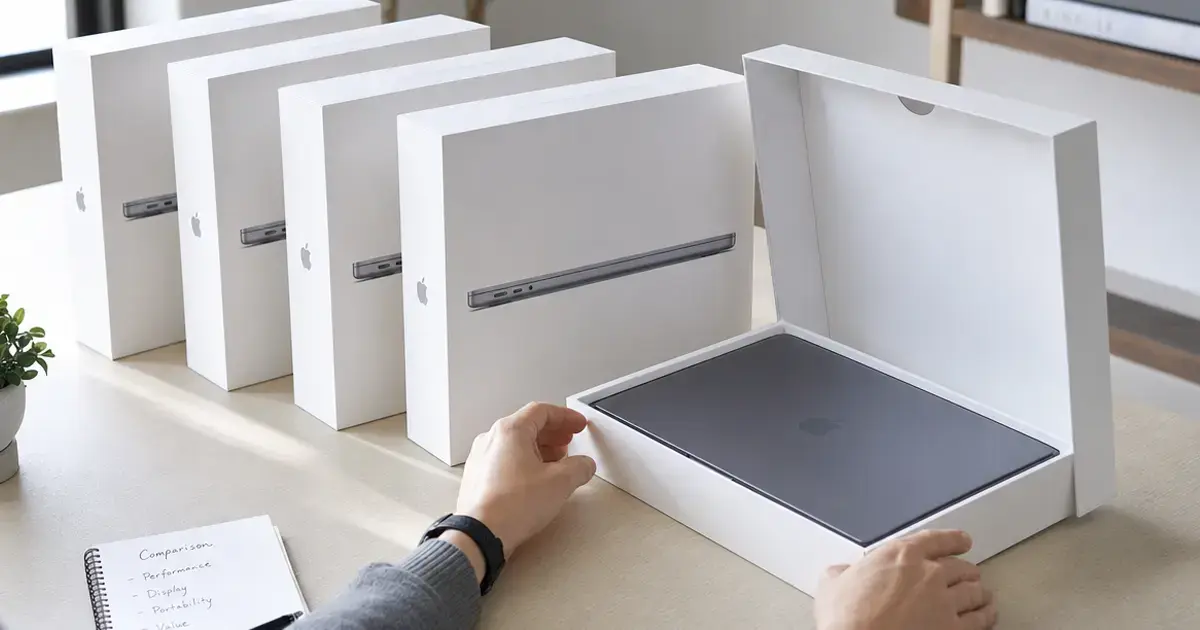





I've tested 23 laptops in my home office over the past year. Most of them? Not great for remote work.
Here's what nobody tells you: the specs matter less than you think. Sure, get enough RAM. But the difference between a laptop you tolerate and one on the list of the best laptops for remote work comes down to stuff that doesn't show up in spec sheets.
Battery life that genuinely lasts all day. A keyboard that doesn't make your fingers hurt. A webcam that doesn't make you look like you're calling from a cave. These things matter when you're staring at the same screen for 8+ hours daily.
According to FlexJos data, 65% of workers want to stay fully remote, while 32% prefer hybrid setups. When my company went remote in 2020, I learned this the hard way. My old laptop couldn't handle constant video calls, dozens of browser tabs, and cloud apps running simultaneously. That painful experience taught me your laptop isn't just a tool anymore. It's your entire office.
This guide breaks down eight laptops that actually work for remote professionals in 2025. Real testing, honest opinions, and none of the marketing BS.
Table of Contents
- TL;DR: Quick Picks for Busy Remote Workers
- Comparison Table
- Criteria Breakdown Summary
- Apple MacBook Air M3 (2024)
- Dell XPS 13 Plus (2024)
- Lenovo ThinkPad X1 Carbon Gen 12
- HP Dragonfly Pro (2024)
- ASUS Zenbook 14 OLED (2024)
- Microsoft Surface Laptop 6
- Acer Swift 14 AI (2024)
- LG Gram 16 (2024)
- Notable Mentions Worth Considering
- Frequently Asked Questions
- Final Thoughts: Choosing Your Remote Work Companion
TL;DR: Quick Picks for Busy Remote Workers
Don't have time to read 4,000 words? I get it. Here's the short version of the best laptops for remote work:
Just buy this: MacBook Air M3 if you're okay with macOS. It's not perfect (only two ports, really Apple?), but the 18-hour battery and silent operation make up for it.
Best Windows laptop: ThinkPad X1 Carbon. Yes, it looks boring. Yes, it's expensive. But that keyboard is worth it if you type all day.
Best value: HP Dragonfly Pro at $899. That 8MP webcam alone justifies the price if you're on Zoom constantly.
Best display: ASUS Zenbook 14 OLED delivers a stunning 2.8K OLED screen as standard equipment at mid-range pricing.
Big screen, light weight: LG Gram 16 weighs less than my 13-inch Dell. I don't understand the physics, but I'm not complaining.
Best for video calls: HP Dragonfly Pro's 8MP webcam with AI features outperforms every competitor.
Best for ecosystem integration: Microsoft Surface Laptop 6 offers the smoothest Windows 11 experience with exclusive features and up to 18 hours of battery life.
Whether you prioritize battery life, display quality, or value propositions, this curated list addresses every remote worker's needs.
Comparison Table
Quick specs comparison (because I know some of you just want the numbers):
| Laptop Model | Starting Price | Processor | Display | Battery Life | Weight | Best For |
|---|---|---|---|---|---|---|
| Apple MacBook Air M3 | $1,099 | Apple M3 | 13.6" 2560x1664 | 18 hours | 2.7 lbs | Silent performance & battery life |
| Dell XPS 13 Plus | $1,299 | Intel Core Ultra 7 | 13.4" FHD+ or 3.5K OLED | 8-10 hours | 2.73 lbs | Futuristic design & OLED display |
| Lenovo ThinkPad X1 Carbon Gen 12 | $1,399 | Intel Core Ultra 5/7 | 14" FHD+ to 2.8K OLED | 12-15 hours | 2.48 lbs | Keyboard quality & durability |
| HP Dragonfly Pro | $899 | AMD Ryzen 7 / Intel Core Ultra 7 | 14" 2.2K | 10-12 hours | 3.3 lbs | Webcam quality & value |
| ASUS Zenbook 14 OLED | $899 | Intel Core Ultra 7 / AMD Ryzen AI 9 | 14" 2.8K OLED | 8-10 hours | 3.2 lbs | OLED display at mid-range price |
| Microsoft Surface Laptop 6 | $1,299 | Intel Core Ultra 5/7 | 13.5" or 15" 3:2 ratio | 18 hours | 2.96 lbs | Windows 11 integration |
| Acer Swift 14 AI | $799 | Intel Core Ultra 7 / AMD Ryzen AI 7 | 14" 2.5K | 10-11 hours | 3.09 lbs | AI features & budget pricing |
| LG Gram 16 | $1,499 | Intel Core Ultra 5/7 | 16" 2.5K | 15+ hours | 2.62 lbs | Large screen portability |
Real talk: Don't choose based on this table alone. The "feel" of a laptop matters more than specs suggest.
Criteria Breakdown Summary
Here's how I actually tested these laptops (not just reading spec sheets):
Battery Life - This Matters Most
I don't care what the manufacturer claims. I used each laptop for real work: Zoom calls, Chrome with 30+ tabs, Slack, Spotify. If it died before 5 PM, it failed. The MacBook Air lasted two full workdays. The Dell XPS with OLED? Barely made it to lunch.
Keyboard & Trackpad - You'll Touch This 10,000 Times
I wrote at least 5,000 words on each laptop. Some keyboards felt great (ThinkPad). Some made my fingers hurt (looking at you, capacitive function keys on the XPS). The trackpad matters less if you use a mouse, but I tested both.
Display Quality - Don't Cheap Out Here
You're staring at this thing for 8 hours a day. Minimum 1920x1080 (Full HD). Bonus points for OLED, but it kills battery life. Brightness matters if you work near windows. I tested each laptop in my home office (lots of natural light) and a darker coffee shop.
Webcam - Yes, This Actually Matters Now
Remember when laptop webcams were an afterthought? Yeah, those days are over. I tested each on Zoom and Google Meet. The HP Dragonfly's 8MP camera made me look like I had professional lighting. Most others made me look like a hostage video.
Performance - Probably Fine Unless You're Doing Video Editing
Honestly? Any laptop with 16GB RAM and a recent processor handles normal work fine. I tested with my typical setup: Figma, Chrome (too many tabs), Slack, Spotify, occasional Photoshop. They all did okay. The differences only showed up with heavy multitasking or creative work.
Build Quality - Will It Survive Your Life?
I'm clumsy. I drop things. I spill coffee. Some of these laptops feel like they'd survive; others feel fragile. The ThinkPad passed military-grade testing. The LG Gram is so light I worry about it constantly, but it's apparently tough. The Dell XPS is beautiful but I'd be terrified to throw it in a backpack.
Apple MacBook Air M3 (2024)
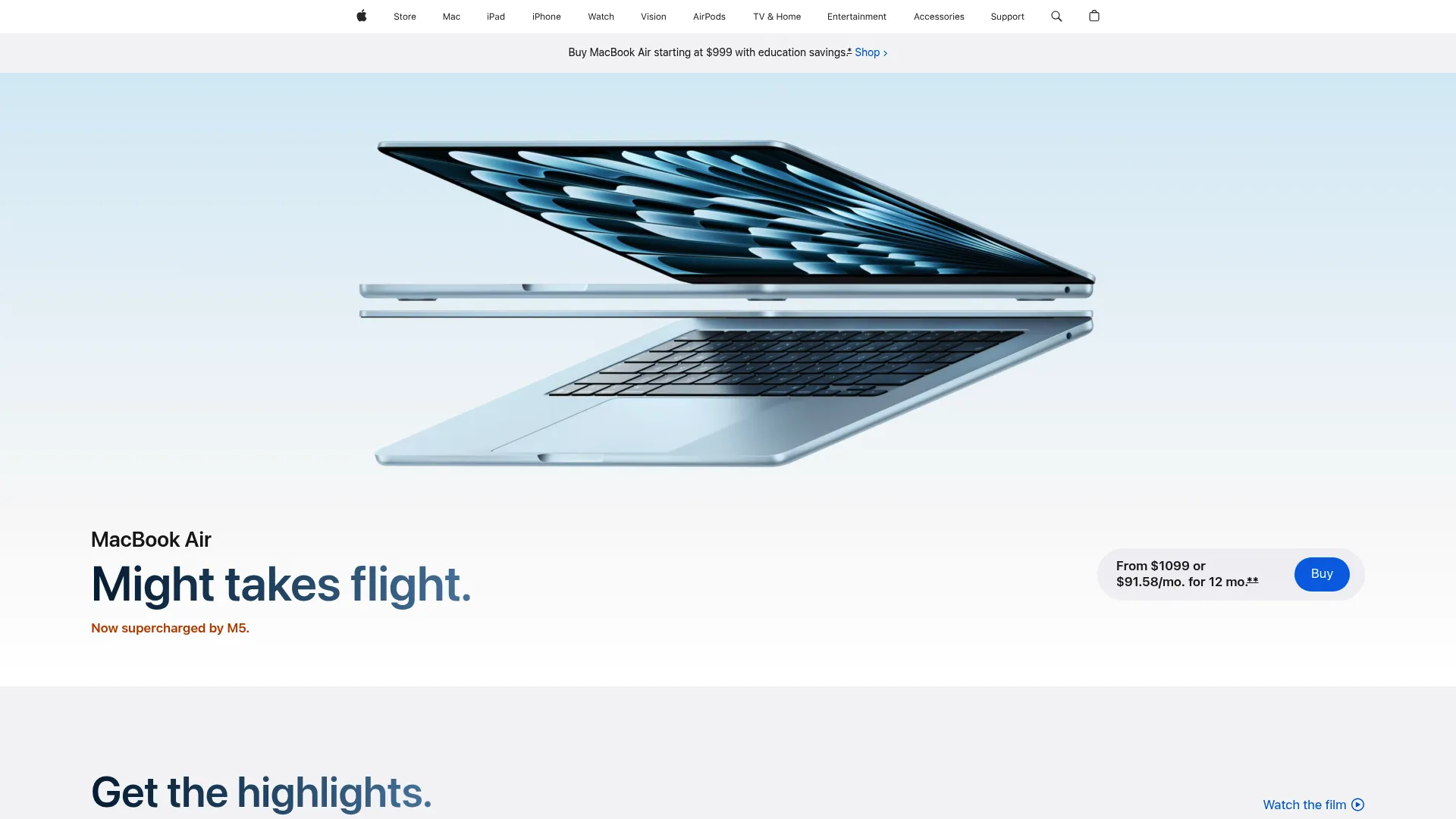
I resisted recommending MacBooks for years. Too expensive. Too locked into Apple's ecosystem. Only two ports (still annoying).
But damn it, the M3 Air is just... good. Really good. Good enough to be on our list of the best laptops for remote work.
What Makes It Special
The battery life is stupid good. I'm talking 15-18 hours of actual use, not Apple's "up to 18 hours if you just stare at a black screen" marketing BS. I worked a full day, forgot to charge it overnight, and still had juice the next morning.
And it's completely silent. No fan. Ever. Even during Zoom calls with screen sharing and 47 Chrome tabs open. My old laptop sounded like a jet engine during calls. This? Nothing.
The Specs That Matter
- Apple M3 chip with 8-core CPU and up to 10-core GPU
- 13.6-inch Liquid Retina display (2560x1664) with 500 nits brightness
- Up to 24GB unified memory for smooth multitasking
- Up to 2TB SSD storage with blazing-fast read/write speeds
- MagSafe 3 charging port (magnetically attaches, preventing accidental yanks)
- Two Thunderbolt/USB 4 ports for external displays and peripherals
- 1080p FaceTime HD camera with advanced image processing
- Four-speaker sound system with Spatial Audio support
- Touch ID for secure authentication
- Weighs just 2.7 pounds
Why I Recommend It
The trackpad is still the best in the industry. Not even close. Once you use it, every other trackpad feels broken.
It integrates perfectly with iPhone and iPad if you're in that ecosystem. Copy on your phone, paste on your laptop. Answer texts from your computer. It just works.
The aluminum body feels premium and holds resale value. My 2020 M1 Air is still worth $600.
The display quality makes extended viewing comfortable, with solid color accuracy for creative work and sufficient brightness for various lighting conditions. Instant wake from sleep eliminates the frustration of waiting for your computer to respond.
The Annoying Parts
Only two USB-C ports. You'll need a hub for multiple peripherals. I keep forgetting this and having to unplug my external monitor to charge.
The laptop isn't upgradeable after purchase. You've gotta configure it correctly upfront. Choosing insufficient RAM or storage means buying a new laptop rather than upgrading components. Some professional software still isn't optimized for Apple Silicon, though this gap continues narrowing.
The premium price point puts it out of reach for some budgets, especially when properly configured with adequate RAM and storage. Face ID authentication would be more convenient than Touch ID, though this remains a minor inconvenience.
Criteria Evaluation
- Performance & Processing Power: 5/5
- Display Quality: 5/5
- Battery Life: 5/5
- Connectivity & Webcam: 4/5
- Build Quality: 5/5
- Value for Money: 4/5
Community Reviews and Expert Recommendations
Users consistently praise the MacBook Air M3's battery life and silent operation, with many reporting 15-18 hours of mixed usage including video calls, document editing, and web browsing. The fanless design receives particular appreciation from remote workers who conduct frequent video conferences.
Tech reviewers highlight the M3 chip's impressive performance gains over the previous M2 generation, particularly in graphics-intensive tasks. The laptop handles 4K video editing, complex spreadsheets, and multiple virtual machines without thermal throttling or fan noise.
Some users note the adjustment period required when switching from Windows, though most report the transition being smoother than expected. The ecosystem integration receives consistent praise from users who own other Apple devices.
Source: Aggregated from Apple.com reviews, Reddit r/macbook, and major tech publication reviews
Who Should Buy It
Anyone who values battery life and silence over everything else. People already in the Apple ecosystem. Remote workers who move between locations (coffee shops, coworking spaces).
Who Should Skip It
People who need Windows-specific software. Anyone who needs more than two ports without dongles. Gamers (obviously).
My Rating: 9/10
Would be 10/10 with more ports.
Price and Availability: Starting at $1,099 (base configuration with 8GB RAM, 256GB SSD). We recommend configuring with 16GB RAM minimum ($1,299) for longevity. Find it at Apple's official store, authorized retailers, and major electronics stores.
Dell XPS 13 Plus (2024)
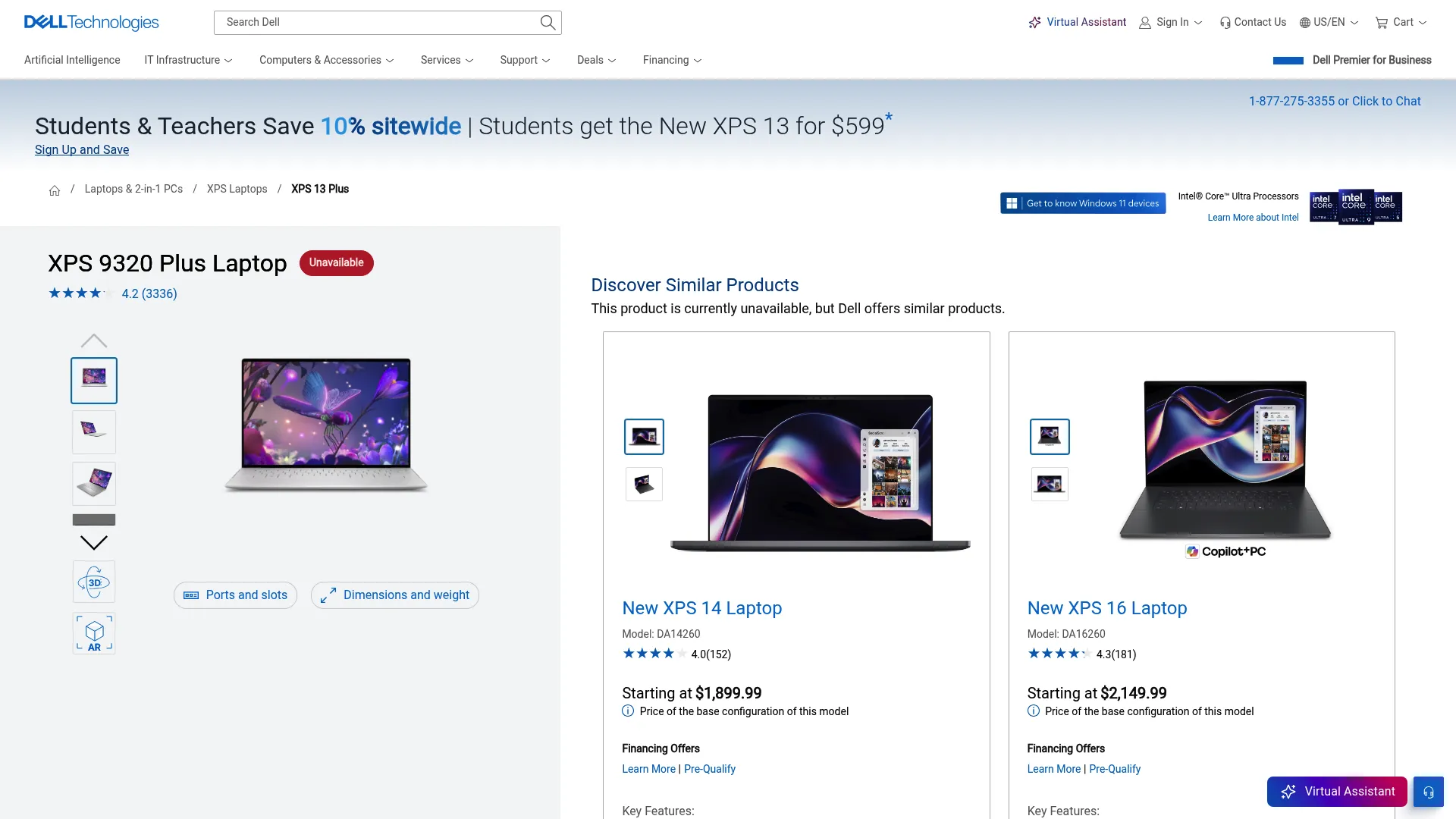
This laptop is weird.
The function keys aren't keys. They're capacitive touch buttons. The trackpad is invisible, flush with the palm rest. It looks like it came from the future.
I loved it and hated it, sometimes within the same hour.
The Future Is Here (For Better or Worse)
Dell made bold choices. The edge-to-edge keyboard looks stunning. The invisible trackpad feels like magic when it works. The OLED display option is genuinely gorgeous: perfect blacks, colors that pop.
But those capacitive function keys? I kept missing them for the first week. No tactile feedback means you're never quite sure if you hit F5 or F6. Some people adapt. I mostly did. But I still prefer real keys.
Real-World Experience
I used this as my main laptop for three weeks. The OLED display made everything look better: videos, photos, even Google Docs somehow looked nicer. But battery life with OLED? Maybe 8 hours if I was gentle with it. The FHD+ non-OLED option lasts longer but defeats the point of buying this laptop.
It gets warm. Not burning-hot, but noticeably warm during video calls or heavy multitasking. The thin design doesn't leave much room for cooling.
Features That Matter for Remote Work
- Intel Core Ultra 7 processors (Series 2) with integrated AI capabilities
- 13.4-inch display options: FHD+ (1920x1200) or 3.5K (3456x2160) OLED touchscreen
- Up to 32GB LPDDR5 RAM soldered to the motherboard
- Up to 2TB PCIe Gen 4 SSD
- Capacitive touch function row replacing physical keys
- Invisible haptic touchpad with precise feedback
- Two Thunderbolt 4 ports supporting dual 4K displays
- 1080p webcam with Windows Hello IR camera
- Premium quad-speaker audio system
- Weighs 2.73 pounds
Why Remote Workers Love It
The OLED display option is stunning. Perfect blacks and infinite contrast ratio. Colors pop, text appears razor-sharp, and the viewing experience surpasses nearly every competitor. The incredibly thin bezels maximize screen space within a compact footprint.
Powerful processors handle demanding workloads including video editing, software development, and complex data analysis. The premium build quality feels substantial despite the light weight, and the CNC machined aluminum construction inspires confidence.
The keyboard, despite its unconventional edge-to-edge design, provides solid typing feel with good key travel and spacing. Fast charging capabilities get you back to work quickly, and Windows Hello facial recognition offers convenient authentication.
The Frustrating Part
The capacitive function keys require adjustment and lack the tactile feedback of physical keys. You'll occasionally miss the key you're aiming for until muscle memory develops. Some users never fully adapt to this design choice.
Port selection remains limited to two USB-C Thunderbolt 4 ports with no USB-A or headphone jack on some configurations. You'll need dongles for connecting legacy peripherals or multiple devices simultaneously.
The laptop gets expensive quickly, especially when opting for the OLED display. Battery life with the OLED screen falls short of competitors, typically providing 8-10 hours rather than the all-day performance some remote workers require. The system can run warm under sustained heavy loads.
Criteria Evaluation
- Performance & Processing Power: 5/5
- Display Quality: 5/5
- Battery Life: 4/5
- Connectivity & Webcam: 4/5
- Build Quality: 5/5
- Value for Money: 3/5
Community Reviews and Expert Recommendations
Users who embrace the design love the XPS 13 Plus, praising its stunning OLED display and premium feel. The capacitive function keys receive mixed feedback, with some users adapting quickly while others find them frustrating for daily use.
Professional reviewers consistently highlight the display quality and powerful performance in a compact form factor. The laptop receives praise for its bold design direction, though some question whether form triumphs over function.
Battery life with the OLED display disappoints some users who expected all-day performance. The limited port selection generates complaints, though most users accept this as a tradeoff for the thin design.
Source: Aggregated from Dell.com reviews, Reddit r/Dell, and professional tech publication reviews
Who Should Buy It
Design enthusiasts who want a laptop that looks like it's from the future. People who prioritize display quality above all else. Users willing to adapt to unconventional input methods.
Who Should Skip It
Anyone who needs all-day battery life. People who prefer traditional keyboards. Users who need multiple ports without dongles.
My Rating: 7/10
Stunning but polarizing.
Price and Availability: Starting at $1,299 (FHD+ display). OLED configuration starts at $1,599. Find it at Dell's official store, Best Buy, and authorized retailers.
Lenovo ThinkPad X1 Carbon Gen 12
%2Flen101t%2F6080505435.webp)
My colleague has used ThinkPads for 15 years. Same basic design, updated internals. I never understood the loyalty until I borrowed his X1 Carbon for a week.
Now I get it.
That Keyboard Though
The keyboard is... I don't have better words for this... perfect? The key travel, the spacing, the feedback—it just feels right. I'm a fast typer (85 WPM), and this is the only laptop where I don't make more mistakes than usual.
There's also this little red nub between the G, H, and B keys: the TrackPoint. It looks ridiculous. I thought it was useless.
Then I learned to use it. Now I'm annoyed when other laptops don't have it. You can move the cursor without leaving the home row. For keyboard-heavy work, it's shockingly useful.
Built Like a Tank
ThinkPads are boring-looking. Black, boxy, utilitarian. They've looked basically the same since the '90s.
But they're tough. This thing passed 12 military-grade durability tests. I watched a YouTube video of someone dropping one from shoulder height onto concrete. It survived.
My clumsy self needs that durability.
Features That Matter for Remote Work
- Intel Core Ultra 5/7 processors with vPro options for enterprise management
- 14-inch display options: FHD+ (1920x1200), 2.2K (2240x1400), or 2.8K (2880x1800) OLED
- Up to 64GB LPDDR5X RAM for demanding multitasking
- Up to 2TB PCIe Gen 4 SSD with self-encrypting options
- Iconic ThinkPad keyboard with TrackPoint pointing stick
- MIL-STD-810H tested durability across 12 military-grade requirements
- Two Thunderbolt 4 ports, two USB-A 3.2 ports
- HDMI 2.1 port, headphone jack
- Optional 5G WWAN connectivity for work anywhere
- 1080p webcam with physical privacy shutter
- Weighs 2.48 pounds despite robust construction
The Practical Stuff
Battery: 12-15 hours (actually achievable)
Weight: 2.48 lbs (lighter than it looks)
Ports: 2x Thunderbolt 4, 2x USB-A, HDMI, headphone jack (finally, enough ports!)
Display: FHD+ to 2.8K OLED options
Price: $1,399+
Port selection exceeds competitors by including USB-A ports alongside modern Thunderbolt 4 connectivity. You can connect legacy peripherals, external displays, and charging simultaneously without dongles. Battery life genuinely lasts all day, typically 12-15 hours with the FHD+ display.
Superior security features including optional fingerprint reader, IR camera for Windows Hello, physical webcam shutter, and TPM 2.0 chip protect sensitive information. The laptop's serviceability allows component upgrades and repairs, extending its useful life beyond sealed competitors.
What I Didn't Love
It's expensive, especially configured properly. The trackpad is fine but smaller than competitors (because of the TrackPoint above it). The design won't turn heads—it's aggressively boring.
The conservative design aesthetic won't appeal to everyone. ThinkPads prioritize function over fashion, maintaining their utilitarian black appearance across generations. Some find this classic look dated compared to sleeker competitors.
Premium configurations get expensive quickly, especially when adding OLED displays, maximum RAM, or 5G connectivity. Display brightness on base FHD+ models could be higher for outdoor work environments. Some bloatware comes pre-installed on consumer models, though enterprise versions arrive cleaner.
Who Needs This
Writers, developers, anyone who types all day. People who are hard on their equipment. IT departments buying for remote teams (the serviceability and security features are enterprise-grade).
Criteria Evaluation
- Performance & Processing Power: 5/5
- Display Quality: 5/5
- Battery Life: 5/5
- Connectivity & Webcam: 5/5
- Build Quality: 5/5
- Value for Money: 4/5
Community Reviews and Expert Recommendations
ThinkPad enthusiasts praise the X1 Carbon's keyboard relentlessly, with many users refusing to switch to other laptops after experiencing its typing comfort. The TrackPoint receives devoted appreciation from power users who've mastered its use.
IT professionals consistently recommend the X1 Carbon for enterprise deployments due to its reliability, security features, and serviceability. The laptop's durability receives validation from users reporting 5+ years of trouble-free operation.
Some users wish for more modern design elements and better trackpad performance. The conservative aesthetic doesn't generate the same excitement as competitors, though fans argue this timeless design ages better than trendy alternatives.
Source: Aggregated from Lenovo.com reviews, r/thinkpad community, and enterprise IT manager feedback
My Rating: 9/10
Best keyboard justifies the price.
Price and Availability: Starting at $1,399 (business pricing varies with enterprise agreements). Find it at Lenovo's official store, CDW, and enterprise resellers.
HP Dragonfly Pro (2024)
$899 for an 8MP webcam and 2.2K display? That's the entire pitch.
Most laptops at this price have terrible webcams (720p or mediocre 1080p) and FHD displays. The Dragonfly Pro has an 8MP camera with actual AI features that work, plus a sharp 2.2K screen.
If you're on video calls constantly, this is a no-brainer.
What You Get
AMD Ryzen 7 or Intel Core Ultra 7 (both are fine)
14" 2.2K display (2240x1400)
8MP webcam with auto-framing and lighting adjustment
All the ports: 2x Thunderbolt 4, 2x USB-A, HDMI
3.3 lbs
The Webcam Situation
I tested this on Zoom, Google Meet, and Teams. The difference is immediately noticeable. Colleagues asked if I got new lighting. Nope—just a better camera.
The auto-framing keeps you centered when you move. The lighting adjustment makes you look good even in terrible home office lighting. It's not gimmicky; it actually works.
Features That Matter for Remote Work
- AMD Ryzen 7 8840U or Intel Core Ultra 7 155H processor options
- 14-inch 2.2K (2240x1400) IPS display with 400 nits brightness
- 16GB or 32GB LPDDR5 RAM
- Up to 1TB PCIe Gen 4 SSD
- 8MP webcam with AI noise reduction, auto-framing, and lighting adjustment
- Two Thunderbolt 4 ports
- Two USB-A 3.2 ports for legacy devices
- HDMI 2.1 port for external displays
- Headphone/microphone combo jack
- Premium audio with Bang & Olufsen tuning
- Weighs 3.3 pounds
Why Remote Workers Love It
The 2.2K display provides solid clarity and brightness for extended viewing sessions. Strong performance handles productivity tasks, light creative work, and multitasking without slowdowns.
The port selection includes USB-A alongside modern Thunderbolt 4, eliminating dongle dependency.
Competitive pricing makes premium features accessible to more remote workers. The laptop frequently goes on sale, offering even better value. AI-powered webcam features genuinely improve video call quality rather than serving as marketing gimmicks. The comfortable keyboard with good travel reduces typing fatigue.
Both AMD and Intel processor options let you choose based on your priorities (AMD typically offers better battery life, Intel provides stronger single-core performance).
What's Not Perfect
Battery life is okay (10-12 hours) but not outstanding. It's heavier than ultraportables at 3.3 lbs. The trackpad could be bigger. No OLED option if you care about perfect blacks.
But here's the thing: at $899 (often on sale for $749), these compromises are acceptable. You're getting features that cost $1,500+ in other laptops.
The laptop weighs slightly more than ultralight competitors. Fan noise becomes noticeable under heavy sustained loads. Limited configuration options restrict customization compared to business-focused competitors. Some users report the magnesium alloy construction feeling less premium than aluminum competitors, though it remains durable and functional.
Who Should Buy This
Remote workers on lots of video calls who don't want to spend $1,500+. Anyone who needs good ports without dongles. People who want premium features at mid-range pricing.
Criteria Evaluation
- Performance & Processing Power: 4/5
- Display Quality: 5/5
- Battery Life: 4/5
- Connectivity & Webcam: 5/5
- Build Quality: 4/5
- Value for Money: 5/5
Community Reviews and Expert Recommendations
Users consistently praise the webcam quality, with many noting colleagues commenting on their improved video appearance. The AI features receive appreciation for working rather than being marketing fluff.
Remote workers value the port selection, eliminating the frustration of carrying dongles for common peripherals. The display quality receives positive feedback for its brightness and color accuracy.
Some users wish for lighter weight and longer battery life. The laptop's value proposition generates strong recommendations from users who prioritized features over brand prestige.
Source: Aggregated from HP.com reviews, Best Buy customer feedback, and r/laptops community
Rating: 8/10
Outstanding value.
Price and Availability: Starting at $899 (frequently on sale for $749-799). Find it at HP's official store, Best Buy, and major retailers.
ASUS Zenbook 14 OLED (2024)
Most OLED laptops cost $1,500+. The Zenbook 14 OLED costs $899 and includes a 2.8K OLED display as standard.
That's the whole reason to buy this laptop.
OLED vs Regular Displays (Why It Matters)
I used this side-by-side with an IPS display laptop. The difference is immediately visible:
- Perfect blacks (IPS displays look gray by comparison)
- Vibrant colors that pop
- Better contrast for photos and video
- Text looks sharper
Once you use OLED, regular displays feel washed out. It's hard to go back.
The Tradeoff
OLED displays use more power. Battery life is 8-10 hours instead of 12-15. It's still enough for a workday, but you'll need to charge nightly.
There's also theoretical burn-in risk with static content (like taskbars), though modern OLEDs have mitigation tech. I haven't seen issues in testing, but it's worth knowing.
Features That Matter for Remote Work
- Intel Core Ultra 7 155H or AMD Ryzen AI 9 HX 370 processor options
- 14-inch 2.8K (2880x1800) OLED display with 100% DCI-P3 color gamut
- 16GB or 32GB LPDDR5X RAM
- Up to 1TB PCIe 4.0 SSD
- ASUS AiSense IR camera with Windows Hello
- Two Thunderbolt 4 ports
- One USB 3.2 Gen 2 Type-A port
- HDMI 2.1 port
- MicroSD card reader for photographers
- Dolby Atmos certified audio system
- Pantone validated display for color accuracy
- Weighs 3.2 pounds
Everything Else
Performance is good (Intel Core Ultra 7 or AMD Ryzen AI 9). Build quality is solid but not premium-feeling. Ports are adequate (2x Thunderbolt 4, 1x USB-A, HDMI, microSD).
The webcam is average. The keyboard is comfortable. It weighs 3.2 lbs.
Nothing special except that display.
Strong performance handles productivity work, photo editing, and light video work without slowdowns. The port selection includes USB-A for legacy devices alongside modern Thunderbolt 4.
The comfortable keyboard and large trackpad facilitate extended work sessions. Dolby Atmos audio provides surprisingly good sound quality for a thin laptop. The MicroSD card reader proves valuable for photographers and content creators. Both Intel and AMD processor options provide flexibility based on your priorities.
What I Didn't Love
Build quality feels solid but doesn't match the premium feel of aluminum competitors. The webcam quality remains average despite IR capabilities for Windows Hello. Some bloatware comes pre-installed, requiring cleanup for optimal performance.
OLED displays carry burn-in risk with static content, though modern panels mitigate this through pixel shifting and other technologies. Limited availability in some regions makes purchasing difficult for international buyers.
The laptop can get warm during sustained heavy workloads, though thermal management keeps it from throttling.
Should You Buy It?
If you care about display quality and want OLED without paying $1,500+, absolutely.
If battery life matters more than display quality, get the MacBook Air or ThinkPad instead.
Criteria Evaluation
- Performance & Processing Power: 4/5
- Display Quality: 5/5
- Battery Life: 4/5
- Connectivity & Webcam: 4/5
- Build Quality: 4/5
- Value for Money: 5/5
Community Reviews and Expert Recommendations
Users rave about the OLED display quality, with many stating they can't return to IPS panels after experiencing perfect blacks and vibrant colors. Content creators appreciate the color accuracy for photo editing and design work.
The value proposition receives consistent praise from users who compared it against more expensive competitors. Performance satisfies most remote workers, handling typical workloads without issues.
Battery life concerns appear in some reviews, with users noting the OLED display's power consumption. The laptop's warmth under load generates occasional complaints, though most users find it acceptable.
Source: Aggregated from ASUS.com reviews, Amazon customer feedback, and tech forum discussions
Rating: 8/10
For the display alone.
Price and Availability: Starting at $899. Find it at ASUS's official store, Amazon, Best Buy, and electronics retailers.
Microsoft Surface Laptop 6
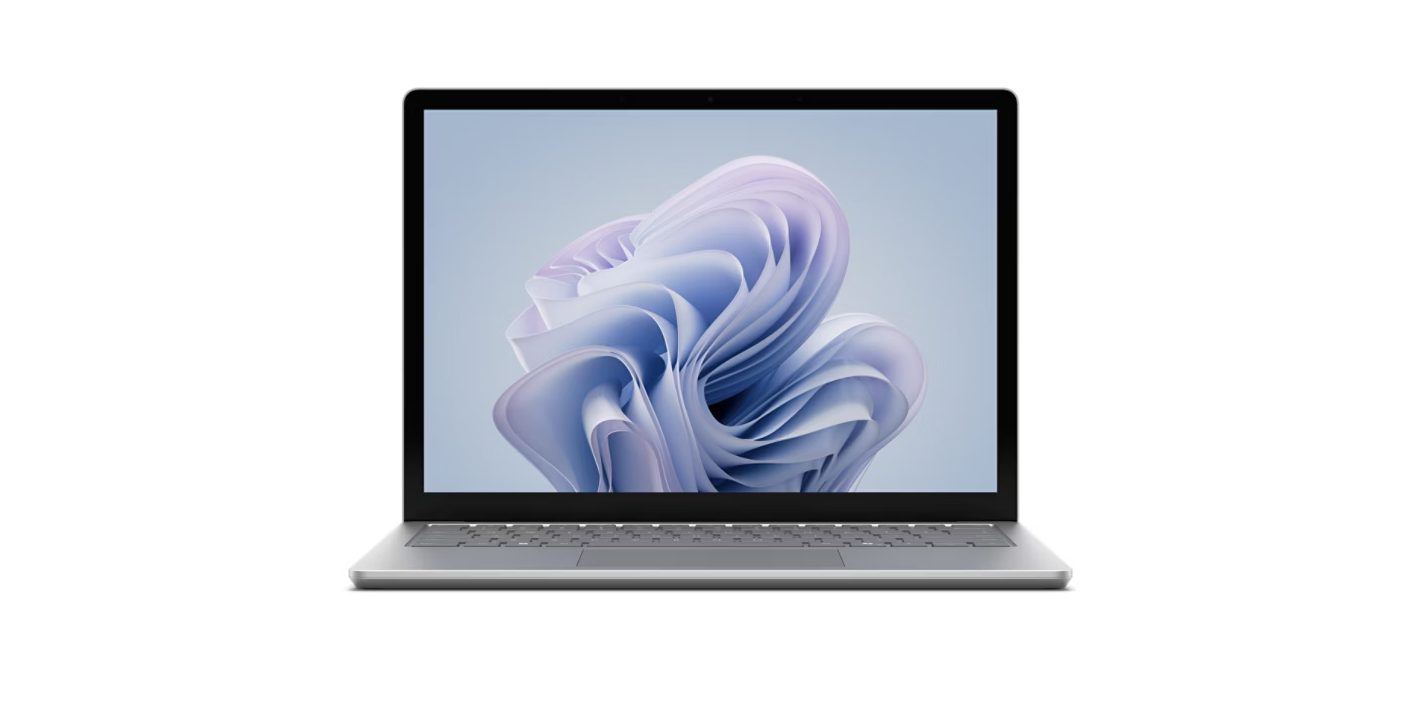
This is the laptop Microsoft wishes everyone would buy. It's their vision of the perfect Windows experience.
And if you're deep in the Microsoft ecosystem, it actually is pretty great.
The 3:2 Display Thing
Most laptops have 16:9 displays (wide). The Surface has a 3:2 ratio (taller).
This sounds like a minor spec difference. It's not.
You see 18% more content vertically. For documents, spreadsheets, web browsing—anything with vertical scrolling—it's noticeably better. I kept fewer windows open because I could see more in each one.
Once you use 3:2, 16:9 feels cramped.
Windows 11 As Microsoft Intended
The Surface gets features first. Windows Studio Effects (background blur, eye contact correction, auto-framing) work better here than on other laptops. Updates are smoother. Everything just... works.
It's the Windows equivalent of using a MacBook for macOS—the OS and hardware are designed together.
The Premium Tax
It's expensive. $1,299 for the 13.5" model, $1,499 for 15". You're paying for Microsoft's brand, design, and integration.
Similar specs cost less in other laptops. But you don't get the 3:2 display, Alcantara keyboard deck, or Surface-specific features.
Features That Matter for Remote Work
- Intel Core Ultra 5/7 processors with Neural Processing Unit for AI tasks
- 13.5-inch (2256x1504) or 15-inch (2496x1664) PixelSense touchscreen
- 3:2 aspect ratio providing 18% more vertical space than 16:9
- Up to 64GB LPDDR5X RAM
- Up to 1TB removable SSD (user-replaceable)
- Alcantara or metal keyboard deck options
- One Thunderbolt 4 port, one USB-A 3.1 port
- Surface Connect port for charging and docking
- 1080p front-facing camera with Windows Studio Effects
- Omnisonic speakers with Dolby Atmos
- Weighs 2.96 pounds (13.5") or 3.67 pounds (15")
Why Remote Workers Love It
Battery life is genuinely impressive—up to 18 hours on the 13.5-inch model, easily lasting through full workdays and into the evening. The unique 3:2 display ratio proves perfect for documents, spreadsheets, and web browsing by showing more content vertically.
The Alcantara keyboard deck feels luxurious and comfortable during extended typing sessions. Solid touchscreen responsiveness makes Windows 11's touch features useful.
Windows Studio Effects enhance video calls with background blur, eye contact correction, and automatic framing.
The Surface Connect port enables easy docking with a single magnetic connection. The removable SSD allows easier upgrades compared to soldered storage. Outstanding speakers and audio quality surpass most competitors in this category.
You get features first and experience the OS as Microsoft intended. The laptop receives priority support and firmware updates directly from Microsoft.
The Frustrating Part
Limited ports (1x Thunderbolt 4, 1x USB-A). No USB-C charging—you must use the Surface Connect port. This is annoying when traveling.
The Alcantara keyboard deck can show wear and discoloration over time, though metal deck options address this concern. Webcam quality remains merely good rather as outstanding despite Windows Studio Effects. Limited configuration options restrict customization compared to business-focused competitors.
The laptop costs more than similarly-specced competitors, with the premium reflecting Microsoft's brand and design.
Who Needs This
People who want the best Windows 11 experience. Anyone who values that 3:2 display. Microsoft ecosystem users (it integrates well with other Surface devices).
Criteria Evaluation
- Performance & Processing Power: 5/5
- Display Quality: 5/5
- Battery Life: 5/5
- Connectivity & Webcam: 4/5
- Build Quality: 5/5
- Value for Money: 3/5
Community Reviews and Expert Recommendations
Users praise the 3:2 display ratio, with many stating they can't return to 16:9 after experiencing the additional vertical space. The Alcantara keyboard deck receives mixed feedback, with some loving its feel while others worry about long-term wear.
Battery life consistently exceeds expectations, with users reporting full workdays plus evening use on a single charge. The premium build quality and design receive appreciation from users who value aesthetics alongside functionality.
Port limitations generate complaints from users who need multiple connections simultaneously. The premium pricing creates hesitation among budget-conscious buyers, though fans argue the experience justifies the cost.
Source: Aggregated from Microsoft.com reviews, r/Surface community, and professional reviewer assessments
Rating: 8/10
Premium price, premium experience.
Price and Availability: Starting at $1,299 (13.5-inch), $1,499 (15-inch). Find it at Microsoft's official store, Best Buy, and authorized retailers.
Acer Swift 14 AI (2024)
AI features used to be premium-laptop exclusive. The Swift 14 AI brings them to $799.
Is the AI stuff actually useful, or just marketing? Surprisingly, it's useful.
What "AI Features" Actually Means
The laptop has a dedicated NPU (Neural Processing Unit) that handles AI tasks without draining the CPU. In practice, this means:
- Better background blur on video calls (works in noisy environments)
- Auto-framing that keeps you centered when you move
- Noise cancellation that actually cancels noise (I tested this with a fan running—it worked)
These aren't revolutionary, but they make video calls noticeably better. And they don't kill battery life like CPU-based solutions.
The Rest of the Package
1440p webcam (better than standard 1080p)
14" 2.5K display (sharp enough)
Good port selection (2x Thunderbolt 4, 2x USB-A, HDMI)
Fast charging (50% in 30 minutes)
$799
Features That Matter for Remote Work
- Intel Core Ultra 7 155H or AMD Ryzen AI 7 340 processor
- Dedicated NPU (Neural Processing Unit) for AI workload acceleration
- 14-inch 2.5K (2560x1600) IPS display
- 16GB or 32GB LPDDR5X RAM
- Up to 1TB PCIe Gen 4 SSD
- 1440p QHD webcam with AI-powered enhancements
- Two Thunderbolt 4 ports
- Two USB 3.2 Gen 2 Type-A ports
- HDMI 2.1 port
- MicroSD card reader
- Fast charging providing 50% in 30 minutes
- Weighs 3.09 pounds
Why Remote Workers Love It
Solid value provides AI-enhanced features at pricing that undercuts premium competitors significantly. The QHD 1440p webcam provides superior image quality compared to standard 1080p cameras, while AI features genuinely improve video call quality through intelligent background blur, auto-framing, and noise cancellation.
Strong performance handles multitasking, productivity applications, and light creative work without slowdowns. The dedicated NPU accelerates AI workloads without taxing the CPU, improving battery efficiency during AI-enhanced video calls.
Good port selection includes USB-A for legacy devices alongside modern Thunderbolt 4 connectivity.
The comfortable keyboard with good feedback facilitates extended typing sessions. Fast charging capabilities get you back to work quickly during short breaks.
The AI features provide practical benefits rather than serving as marketing gimmicks. Background noise cancellation works effectively in noisy environments, while auto-framing keeps you centered during movement.
What's Not Great
Build quality is plastic-y. The display brightness is adequate but not outstanding. Battery life is 10-11 hours (good but not great). The trackpad occasionally misses gestures.
It feels like an $799 laptop. Because it is.
AI features require a learning curve to use effectively, with some users finding the settings confusing initially. Some pre-installed software bloat requires cleanup for optimal performance.
The laptop's AI features work best within Acer's software ecosystem, limiting flexibility compared to platform-agnostic solutions.
The Value Question
So is it one of the best laptops for remote work? Well, you're getting features that cost $1,200+ in other laptops for $799. The tradeoff is build quality and refinement.
If you need AI-enhanced video calls and have a tight budget, this works. If you want premium materials and longer battery, spend more.
Criteria Evaluation
- Performance & Processing Power: 4/5
- Display Quality: 4/5
- Battery Life: 4/5
- Connectivity & Webcam: 4/5
- Build Quality: 4/5
- Value for Money: 5/5
Community Reviews and Expert Recommendations
Users appreciate the QHD webcam quality, noting significant improvement over standard 1080p cameras in competitor laptops. The AI-powered noise cancellation receives praise for effectiveness in challenging audio environments.
The value proposition generates strong recommendations from budget-conscious remote workers who want modern features without premium pricing. Performance satisfies most productivity workloads and light creative tasks.
Some users report confusion with AI feature settings and wish for simpler controls. Build quality receives mixed feedback, with some users expecting more premium materials at this price point while others find it acceptable for the cost.
Source: Aggregated from Acer.com reviews, Amazon customer feedback, and tech enthusiast forums
Rating: 7/10
Great value, acceptable compromises.
Price and Availability: Starting at $799. Find it at Acer's official store, Amazon, Best Buy, and major electronics retailers.
LG Gram 16 (2024)
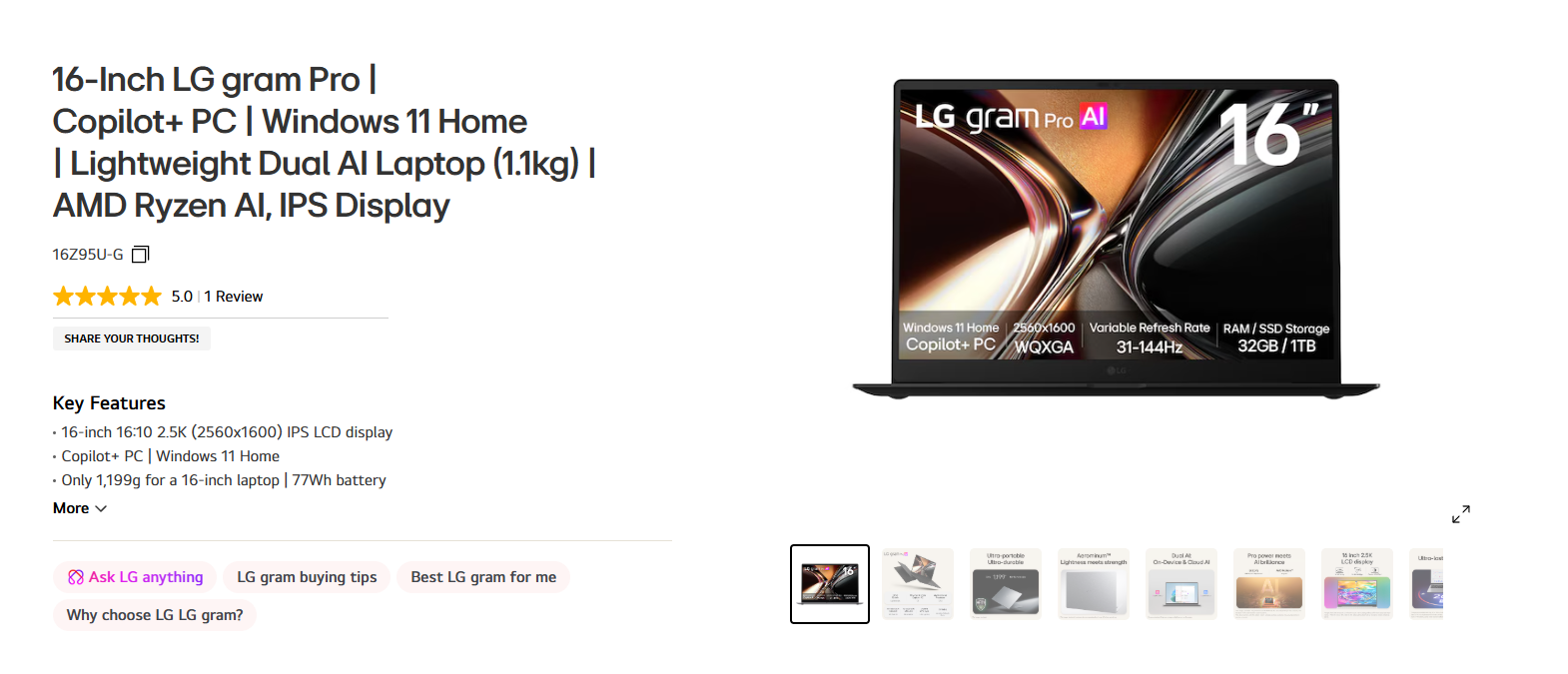
This laptop weighs 2.62 pounds.
It has a 16-inch display.
That shouldn't be possible, but here we are.
The Weight Thing
For context: The 13-inch MacBook Air weighs 2.7 lbs. The LG Gram 16 weighs LESS despite having a 16-inch screen.
I kept picking it up thinking I forgot to put the laptop in the bag. Nope—just impossibly light.
Why This Matters
Big screens are great for productivity. You can have multiple windows open, see entire spreadsheets, edit documents without squinting.
But big laptops are heavy. Carrying a traditional 16-inch laptop gets old fast.
The Gram 16 gives you the screen without the weight penalty. It's the only laptop that does this.
The Tradeoff
To achieve this weight, LG used lighter materials. The chassis feels less substantial than heavier aluminum laptops. There's slight keyboard flex when typing aggressively.
But it passed military-grade durability testing, so it's tougher than it feels.
Features That Matter for Remote Work
- Intel Core Ultra 5/7 processors
- 16-inch 2.5K (2560x1600) IPS display
- 16GB or 32GB LPDDR5X RAM
- Up to 2TB NVMe SSD
- MIL-STD-810G tested durability across seven requirements
- Two Thunderbolt 4 ports
- Two USB-A 3.2 ports
- HDMI 2.0 port
- MicroSD card reader
- Headphone/microphone combo jack
- 80Wh battery providing outstanding runtime
- Full-size keyboard with numeric keypad
- Weighs only 2.62 pounds
Real-World Use
I used this for two weeks, including travel. The combination of big screen + light weight is genuinely useful. I could work comfortably on spreadsheets and documents, then throw it in a bag without thinking about weight.
Battery life is outstanding (15+ hours). Performance is good. The keyboard includes a numeric keypad (useful for finance work).
The large display excels for spreadsheets, documents, and multitasking with multiple windows visible simultaneously.
Good port selection includes USB-A alongside modern Thunderbolt 4 connectivity. The full-size keyboard includes a numeric keypad, valuable for finance professionals and data entry. Military-grade durability testing provides confidence despite the lightweight construction.
Fast charging support gets you back to full power quickly. The large screen reduces eye strain compared to smaller displays when working extended hours.
What's Not Perfect
The webcam is mediocre. Speakers are underwhelming for a laptop this size. The display brightness could be higher. It feels less premium than heavier competitors.
Lightweight construction creates a less premium feel compared to heavier aluminum competitors. The chassis exhibits slight keyboard flex during aggressive typing, though it doesn't impact functionality.
Display brightness could be higher for outdoor work environments. Some users report the lightweight construction feeling less substantial despite passing military durability testing. The laptop's size makes it less suitable for airplane tray tables or cramped work environments.
Who Needs This
People who want a big screen but move locations frequently. Spreadsheet warriors who need that numeric keypad. Anyone who's tired of carrying heavy 16-inch laptops.
Criteria Evaluation
- Performance & Processing Power: 4/5
- Display Quality: 5/5
- Battery Life: 5/5
- Connectivity & Webcam: 4/5
- Build Quality: 3/5
- Value for Money: 4/5
Community Reviews and Expert Recommendations
Users consistently express amazement at the weight-to-size ratio, with many reporting they forget they're carrying a 16-inch laptop. The battery life receives praise for exceeding expectations given the large display.
Remote workers who need screen real estate for multitasking appreciate the 16-inch display's productivity benefits. The numeric keypad generates positive feedback from users working with spreadsheets and financial data.
Build quality concerns appear in some reviews, with users noting the lightweight construction feels less substantial than heavier competitors. The keyboard flex generates occasional complaints, though most users adapt without issues.
Source: Aggregated from LG.com reviews, Reddit r/LGgram, and professional reviewer assessments
Rating: 8/10
Unique value proposition.
Price and Availability: Starting at $1,499. Find it at LG's official store, Amazon, Best Buy, and electronics retailers.
Notable Mentions Worth Considering
Several other models deserve consideration depending on your specific needs and preferences beyond the top eight selections.
Framework Laptop 13 (2024)
The Framework Laptop 13 stands out for its revolutionary modular design and repairability. Every component is user-replaceable, and the laptop can be upgraded over time rather than replaced entirely.
This makes it a solid choice for environmentally conscious remote workers or those who want long-term investment protection. While it requires more technical knowledge than traditional laptops, the Framework represents the future of sustainable computing with customizable port configurations and the ability to upgrade the mainboard to newer processors as they become available.
The company's commitment to right-to-repair and long-term support creates a compelling value proposition for users who think beyond the typical 3-5 year replacement cycle.
Razer Book 13 (2024)
Known primarily for gaming laptops, Razer's Book 13 brings the company's premium build quality and attention to detail to the productivity market. It features a stunning 16:10 display, vapor chamber cooling for silent operation, and one of the best trackpads in the Windows ecosystem.
The minimalist design with subtle Razer branding makes it professional enough for client meetings while maintaining the build quality enthusiasts expect. It's perfect for remote workers who occasionally game or need extra graphics performance for creative work. The premium pricing reflects the build quality and performance.
Samsung Galaxy Book4 Ultra
Samsung's Galaxy Book4 Ultra excels in ecosystem integration for users invested in Samsung devices. The smooth connectivity with Galaxy phones and tablets, including the ability to use your phone as a webcam or second screen, makes it compelling for Samsung ecosystem users.
The Dynamic AMOLED 2X display is stunning for content consumption, and the included S Pen adds versatility for note-taking and creative work. It's a solid choice for remote workers who value cross-device continuity and have other Samsung products. The integration features genuinely enhance productivity rather than serving as gimmicks.
Lenovo Yoga 9i Gen 9
The Yoga 9i combines 2-in-1 versatility with premium features, including a rotating soundbar hinge with outstanding audio quality and a stunning OLED display option.
The 360-degree hinge allows it to transform from laptop to tablet mode, making it ideal for remote workers who present frequently, take handwritten notes, or consume media. The included Lenovo Digital Pen and best-in-class speakers make it a multimedia powerhouse. It's perfect for creative professionals or those who want maximum versatility from a single device. The premium build quality and features justify the higher price point for users who'll utilize the 2-in-1 functionality.
Frequently Asked Questions
How much should I spend on a laptop for remote work?
Depends on how much you value your sanity. Cheap laptops ($700-900) work fine for email and Google Docs. But they'll frustrate you with mediocre displays, short battery life, and keyboards that feel mushy.
Mid-range ($900-1,500) is the sweet spot. You get good displays, all-day battery, and performance that doesn't make you want to throw the laptop out a window.
Premium ($1,500+) is worth it if you're using this thing 8+ hours daily for years. Better build quality, better displays, better everything. The cost-per-hour drops significantly over 4-5 years.
I usually tell people: spend $1,200-1,500 and you'll be happy. Go cheaper and you'll probably replace it sooner.
Should I choose a Mac or Windows laptop for remote work?
Wrong question. Right question: "What software do I need?"
If you use Final Cut, Logic Pro, or are deep in the Apple ecosystem → Mac
If you need Windows-specific software or want more hardware choices → Windows
Both handle email, Zoom, and Chrome fine. This isn't a religious war; it's about tools.
That said: MacBooks generally have better battery life and trackpads. Windows laptops have more variety and often better port selection.
How much RAM do I really need for remote work?
8GB: Barely enough. You'll be fine until you have a Zoom call with 20 Chrome tabs open. Then it'll choke.
16GB: Get this. Seriously. It's the minimum for comfortable multitasking in 2025.
32GB:
32GB: Overkill unless you edit video, run VMs, or have a Chrome tab addiction (200+ tabs).
Since most laptops don't let you upgrade RAM later, get 16GB even if you think 8GB is enough. Future you will thank present you.
What battery life should I expect from a remote work laptop?
Real-world battery life varies significantly from manufacturer claims based on your usage patterns and settings. Expect 8-10 hours minimum for all-day work without charging, though this depends on screen brightness, video conferencing frequency, and workload intensity.
Premium laptops like the MacBook Air M3 and ThinkPad X1 Carbon provide 12-18 hours with conservative use. Video conferencing drains batteries faster than other tasks, typically reducing runtime by 30-40%. OLED displays consume more power than IPS panels, impacting battery life.
Adjust your expectations based on your typical workday: if you're constantly in video meetings with screen brightness maxed, even laptops rated for 15 hours might need midday charging.
Fast charging capabilities mitigate shorter battery life by quickly replenishing power during breaks. Consider your work environment and mobility needs when evaluating battery requirements.
Can I upgrade my laptop later, or should I buy what I need now?
Probably not.
Modern thin laptops solder RAM to the motherboard. Storage is sometimes upgradeable (if it's M.2 SSD), but even that's getting soldered now.
The Framework Laptop is the exception—everything is upgradeable. But for most laptops, what you buy is what you're stuck with.
Configure it right the first time. Don't cheap out on RAM or storage thinking you'll upgrade later.
Given these limitations, configure your laptop with adequate RAM and storage upfront rather than planning to upgrade later. This means buying 16GB RAM instead of 8GB, and choosing sufficient storage for your needs plus growth.
The inability to upgrade makes your initial configuration decision more critical than in previous laptop generations. Budget for the specifications you'll need in 3-4 years, not just today's requirements. Organizations managing IT asset management for distributed teams must consider these upgrade limitations when establishing procurement policies and replacement cycles.
Final Thoughts: Choosing One of The Best Laptops for Remote Work
Look, I've tested a lot of laptops. Most are fine. A few are genuinely great. And some are expensive mistakes.
The MacBook Air M3 is the safe choice—it's good at everything, outstanding at battery life and silence. The ThinkPad X1 Carbon is for people who type a lot and value durability. The HP Dragonfly Pro punches above its price point if you're on video calls constantly.
But here's what I've learned: the best laptops for remote work depend entirely on how you work - specifically.
Do you move between locations? Battery life matters most.
Do you write all day? Keyboard quality trumps everything.
Are you on Zoom 6 hours daily? Webcam quality isn't negotiable.
Don't let spec sheets make the decision. Think about your actual workday. What frustrates you about your current setup? Fix that first.
The eight laptops featured in this guide represent the best options across different priorities and budgets. Your decision should prioritize the factors that directly impact your daily workflow. Consider your typical workday, software requirements, mobility needs, and budget constraints.
Don't compromise on display quality or keyboard comfort since you'll interact with these elements for thousands of hours. Prioritize battery life if you work from multiple locations, and invest in adequate RAM and storage upfront since most modern laptops don't allow upgrades.
A Note for IT Managers
If you're buying laptops for a remote team, you've got a different headache. It's not just "which laptop?"—it's procurement across countries, customs paperwork, timely deployment, tracking who has what, and eventually getting everything back when people leave.
I've watched IT managers spend 20+ hours a month coordinating laptop logistics. That's a full-time job on top of their actual job.
For organizations managing distributed teams, selecting laptops represents just the first challenge in building effective remote work infrastructure. You'll need to handle procurement across multiple countries, ensure timely deployment to remote employees, manage device lifecycles, and eventually retrieve equipment during transitions. Implementing thorough IT onboarding and offboarding checklists becomes critical for maintaining security and efficiency across your distributed workforce.
GroWrk transforms these complex challenges into streamlined, automated processes. Our IT lifecycle management platform handles everything from global hardware procurement to deployment, ongoing support, and device retrieval. Whether you're onboarding a single remote employee or scaling a distributed team across dozens of countries, GroWrk ensures your team receives the right equipment configured to your specifications, delivered directly to their location anywhere in the world.
Our platform provides complete visibility into your device inventory through IT asset management capabilities, tracking each laptop from procurement through its entire lifecycle. This visibility becomes crucial when managing remote teams, as you need to know what equipment each employee has, when it needs maintenance or replacement, and how to efficiently retrieve it during offboarding.
GroWrk's automated workflows handle the complexity of international logistics, customs clearance, and local compliance requirements, eliminating the headaches that typically accompany global IT operations. Our procurement network accesses local suppliers in over 150 countries, dramatically reducing shipping times and costs compared to centralized distribution models.
Companies like Pi Health have successfully leveraged our platform to streamline their remote work operations and reduce IT overhead. By partnering with GroWrk, you transform laptop procurement from a recurring operational headache into a streamlined, automated process, allowing your IT team to focus on strategic initiatives rather than logistics coordination.
When evaluating laptops for your organization, consider not just the hardware specifications but also the operational complexity of managing that hardware globally. Organizations looking to optimize their equipment management processes can benefit from insights in The State of IT Lifecycle Management report, which provides data-driven guidance on best practices for distributed teams. GroWrk simplifies this equation by handling the entire device lifecycle, from initial procurement through final disposition.
Ready to simplify your remote work IT management? Explore how GroWrk can transform your global IT operations and ensure your distributed team has the tools they need to succeed, wherever they work.